
Gaming
How do Clans work in Call of Duty: COD Mobile

In Call of Duty Mobile, Clan Wars enables you to team up with other players for weekly challenges, offering unique rewards for winners. Participation has no downsides and can lead to exciting cosmetic rewards. Our comprehensive guide will walk you through everything you need to know about Clan Wars in Call of Duty Mobile.
What are Clans in CoD mobile
Mobile are communities of players who join forces to play the game together. Whether you enjoy Multiplayer, Battle Royale, Zombies, or all game modes, your Clan is the place to find fellow players ready for action.
Clans become accessible after reaching Level 5, at which point you can choose to join an existing Clan or create your own.
Why join a Clan in CoD mobile
Mobile offers the opportunity to meet new friends and learn new strategies. Most Clans have both casual and competitive segments, catering to players who enjoy the social aspect as well as those seeking a more competitive environment.
How to create a Clan in CoD mobile
To create a Clan in Call of Duty: Mobile, follow these steps:
- From the main menu of Call of Duty, tap the Clan button at the bottom center of the screen to access the Clan menu.
- In the Clan menu, you’ll see a list of Clans you can join. To create your own Clan, click the Create Clan button at the top right of the screen.
- In the Create Clan section, you can name your Clan and choose its mode preference, such as multiplayer, battle royale, or both. You can also set your Clan’s member applications to have no restrictions, require an application, or be closed.
- Creating a Clan requires 1,500 Credits, which is Call of Duty Mobile’s unique currency earned through gameplay, challenges, daily login bonuses, and events.
- Keep in mind that Clan Wars is a weekly competition that resets every Tuesday. If you create a Clan mid-week, you’ll have to wait until the following Tuesday to participate in Clan Wars.
How to join a Clan in cod mobile
If you prefer not to pay the 1,500 buy-in or handle recruitment, you can join an existing Clan to participate in Clan Wars. Here’s how:
- Tap the Clan button at the bottom center of the main menu to access the Clan menu.
- In the Clan menu, you’ll find a list of active Clans looking for new members. You can see each Clan’s name, the number of members, their mode preference, and activity level for the current season.
- Select the Clan you want to join and tap the “Join” or “Apply” button in the bottom right corner of the screen.
Keep in mind that Clan Wars is a weekly competition that resets every Tuesday. To participate, you must be in a Clan at that time. If you join a Clan mid-week, you’ll have to wait until the following Tuesday to participate in Clan Wars with your new Clan.
How do Clan Wars work in CoD mobile
Clan Wars in Call of Duty: Mobile is a competitive mode where Clans compete for territory in a progressive league system, offering more significant rewards for higher rankings.
Here’s how Clan Wars work:
- Each week, your Clan will compete against five other Clans for dominance over the map. Throughout the six-day Clan War, various nodes will open on the map, each with different assigned tasks.
- Complete tasks associated with open nodes, such as playing Attack of the Undead or Ranked Mode matches or achieving specific objectives like getting a certain number of kills with SMGs.
- Work together with your Clan to maximize your score on different nodes before their timer runs out.
- Each node has a duration ranging from 24 hours to three days. When a node closes, it awards Clan Points based on the performance of the participating Clans.
- Clan Points are acquired by winning nodes and are used for weekly settlement.
- Node Points are acquired by completing node tasks and are used for Clans competing for nodes.
- Clan Trophies are acquired through weekly settlement and determine the rank of a Clan.
- Clan Currency (also known as Clan Credits) is earned through weekly and seasonal settlements of Clan Wars and can be used to purchase items in the Clan Shop. Clan Currency resets every season.
How To Participate in Clan Wars in CoD mobile
In Call of Duty: Mobile’s Clan Wars, each week your clan competes against five others for control over a Clan Wars map. Throughout the six-day event, various challenge nodes appear on the map, offering timed tasks to competing clans.
Here’s how it works:
- There will be a minimum of three available challenge nodes each day, but not all nodes are available at the start of the week.
- Players must choose an active node and complete the assigned challenge, which could involve playing specific modes, achieving certain objectives, or using specific weapons.
- Clan Points are earned by completing node tasks, with later nodes offering more points than earlier ones.
- Players can earn additional bonuses for their node points, such as bonuses for playing matches with clan members, purchasing the battle pass, or achieving specific goals set by the clan leader.
- Each challenge node lasts from 24 hours to 3 days, and the clan with the most node points at the end of each node wins.
- Players can increase Clan Points through various activities, including daily clan logins, donating resources to the clan, completing daily clan quests, participating in clan events like Monster Treasure, and assisting clan members with activities like egg hatching or donating items.
- To achieve a high rank in Call of Duty: Mobile, players can collaborate with friends or in-game acquaintances, which can improve their performance in both Battle Royale and Multiplayer modes.
By participating in Clan Wars and increasing Clan Points through various activities, players can aim for higher ranks and contribute to their clan’s success in Call of Duty: Mobile.
What are the benefits of Clans in Call of Duty?
In Call of Duty: Mobile, a clan can accommodate up to 100 members, so there’s plenty of space for all your friends. Having a large clan is beneficial because playing in a team with other clan members provides a 10% boost to Player, Weapon, and Operator XP for everyone in the group. This boost is a great incentive for clan members to team up and play together, enhancing the overall gaming experience and encouraging teamwork within the clan.
Gaming
Man Utd fans name player they never want to see again after ‘disgraceful defending’ in Newcastle defeat
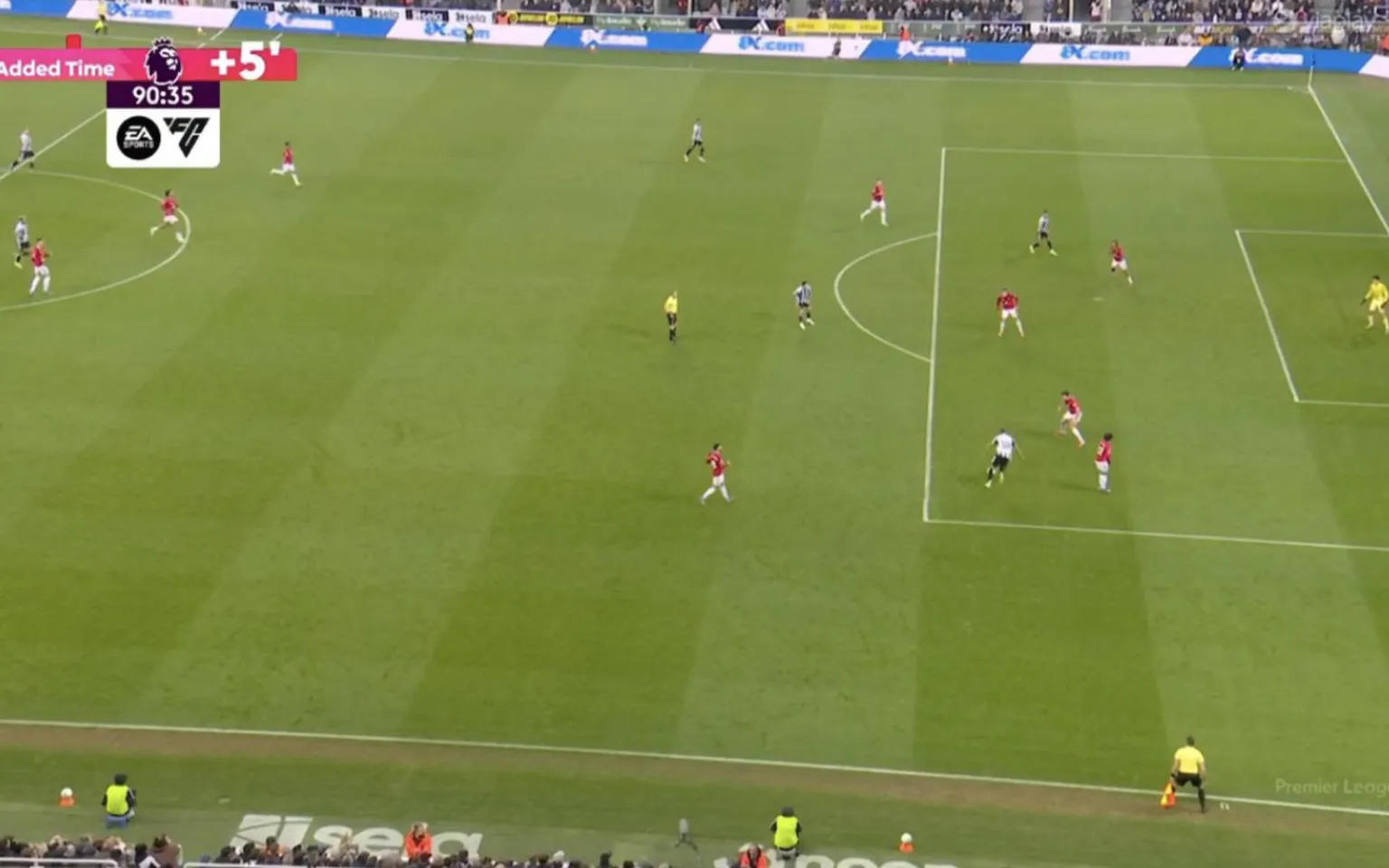
Manchester United FC supporters were left furious after defender Tyrell Malacia was involved in the sequence that led to Newcastle United FC’s dramatic late winner.
Despite being reduced to ten men, Newcastle snatched all three points thanks to a stunning stoppage-time strike from substitute William Osula. The forward surged forward on a powerful run before bending a superb left-footed effort into the corner to seal the victory.
Malacia had only just come on in the 85th minute, replacing Noussair Mazraoui. However, the Dutch full-back struggled to deal with Osula’s movement in the decisive moment. The Newcastle attacker’s quick stepovers left Malacia off balance and briefly facing the wrong direction before the shot was fired past goal.

The moment sparked heavy criticism from United fans online. One supporter wrote that Malacia should never start another game for the club, questioning the quality of the defending in the build-up to the goal. Another fan said the appearance should be his last for United, arguing the club should never have signed him and wondering why he was even on the bench. Others echoed the frustration, with one supporter saying they were speechless after watching the defender’s reaction to the move, while another insisted the substitution itself made little sense.
Malacia endured a difficult period before returning to the pitch. The left-back missed the entire 2023–24 campaign because of a serious knee injury and only made his comeback in November 2024. He then spent the second half of last season on loan at PSV Eindhoven.
After returning to Old Trafford, Malacia initially found himself out of the squad and was reportedly included in Ruben Amorim’s so-called “bomb squad” alongside players such as Marcus Rashford, Jadon Sancho and Antony. With no transfer materialising during the summer window, he was eventually brought back into first-team training toward the end of September.
The appearance at St James’ Park was only his second for the senior side this season, following a brief cameo against Newcastle at Old Trafford on Boxing Day. The nine-cap Netherlands international is also approaching the end of his contract, which expires this summer.
The match itself burst into life during first-half stoppage time. Jacob Ramsey was sent off after receiving a second yellow card for simulation following a challenge from goalkeeper Senne Lammens.

Moments later Newcastle were awarded a penalty when Bruno Fernandes tripped Anthony Gordon inside the box. Gordon stepped up and converted from the spot to give the hosts the lead.
United responded quickly, with Casemiro heading home Fernandes’ free-kick deep into first-half stoppage time to level the score.
The visitors pushed for a winner after the break, but it was Osula who produced the decisive moment with a memorable strike in the 90th minute.
The victory lifted Newcastle above Brighton & Hove Albion FC into 12th place in the table, while Manchester United remained third but missed the chance to strengthen their hold on a UEFA Champions League position.
If you’re looking to use custom songs in your Roblox games, you’ll need to know how to find their Song ID numbers. Here’s a step-by-step guide to help you get started.
Method 1: Using Roblox.com
- Log in to Roblox
Start by visiting Roblox.com and signing in to your account. - Access the Creator Marketplace
Click on the Create tab at the top of the page. Once there, navigate to the Creator Marketplace. - Select Audio
On the left-hand side of the Creator Marketplace, click on Audio. You’ll see a list of audio files available for use—many of which are free. - Find and Select a Song
Browse through the available options and select the song you’d like to use. You can click on the song to preview it. - Locate the Song ID
When you’ve selected a song, look at the URL in your browser’s address bar. Afterroblox.com/library/, you’ll find a number—this is the Song ID. Copy this number usingCtrl + C. - Add the Song to Your Game
In Roblox Studio, go to Sound Service and add a new sound. Paste the Song ID into the Sound ID field and pressEnter. You can now adjust settings like looping and playback.
Method 2: Using Roblox Studio
- Open the Toolbox
In Roblox Studio, open the Toolbox and click on Audio in the Marketplace section. - Browse for a Song
Search for a sound effect or song you’d like to use. When you find one, right-click on it and select Copy Asset ID. - Add the Song to Your Game
Paste the copied Asset ID into the Sound ID field where you’d like the sound to play.
Conclusion
These two methods make it easy to find and use Song IDs in your Roblox games. Whether you’re working directly in Roblox Studio or exploring the Creator Marketplace, you’re now equipped to enhance your game with custom audio.
If you have questions, feel free to leave them in the comments. Don’t forget to check out my other Roblox Studio tutorials for more tips and tricks. Thank you for reading, and happy game development!
Roblox, a dynamic and interactive online gaming platform, allows players to personalize their gameplay with music.
This customization is possible through Roblox Music Codes, which are unique identifiers for a wide variety of songs.
However, due to Roblox not owning the rights to these tracks, the available music codes are frequently updated, with some songs being removed and new ones added regularly.
In this article, we’ll guide you through the latest song IDs, ensuring your Roblox games stay fresh and fun with a current music selection.
The best Roblox music codes
Here’s a list of the best songs and sound IDs to play in Roblox, along with the necessary codes:
- AC/DC – Thunderstruck – 146961487
- Amaarae – SAD GIRLZ LUV MONEY – 8026236684
- The Anxiety – Meet Me At Our Spot – 7308941449
- Ashnikko – Daisy – 5321298199
- Baby Shark – 614018503
- Bach – Toccata & Fugue in D Minor – 564238335
- Beastie Boys – Intergalactic – 131603357
- Beethoven – Fur Elise – 450051032
- Beethoven – Moonlight Sonata (1st Movement) – 445023353
- Belly Dancer x Temperature – 8055519816
- Billie Eilish – NDA – 7079888477
- Boney M – Rasputin – 5512350519
- BTS – Fake Love – 1894066752
- Charli XCX – Boom Clap – 189739789
- Chumbawamba – Tubthumping – 6210414499
- Claude Debussy – Claire De Lune – 1838457617
- Darude – Sandstorm – 166562385
- Dua Lipa – Levitating – 6606223785
- Doja Cat – Say So – 521116871
- Ed Sheeran – Bad Habits – 7202579511
- Fetty Wap – Trap Queen – 210783060
- Five Nights At Freddy’s – 2 Song: Survive The Night – 189825748
- Frozen – Let It Go – 189105508
- Glass Animals – Heat Waves – 6432181830
- GTA San Andreas – Theme Song – 4571975095
- John Williams – Cantina Band – 131077111
- Juice WRLD – Lucid Dreams – 8036100972
- Justin Bieber – Yummy – 4591688095
- Kelis – Milkshake – 321199908
- Lady Gaga – Applause – 130964099
- Lil Nas X – Industry Baby – 7253841629
- Lil Nas X – Panini – 3345557951
- Linkin Park – In The End – 3018974408
- LISA – Money – 7551431783
- Living Colour – Cult of Personality – 4831009971
- Luis Fonsi – Despacito – 673605737
- Maroon 5 – Payphone – 131396974
- Mii Channel Music – 143666548
- Nirvana – Smells Like Teen Spirit – 3495593580
- Olivia Rodrigo – Brutal – 6937354391
- Panic! at the Disco – Hallelujah – 241864564
- Pinkfong – Baby Shark – 614018503
- Pokémon – Pokérap – 152381839
- PSY – Gangnam Style – 130844430
- Queen – Bohemian Rhapsody – 4587240503
- Soft Jazz – 926493242
- Spider-Man: Into the Spider-Verse – What’s Up Danger – 3106151105
- Spooky Scary Skeletons – 515669032
- Taylor Swift – You Belong With Me – 6159978466
- Wii Sports – Boxing (Results) – 5899797296
- Wolf Alice – Fluffy – 1306647669
How to use music codes in Roblox
To play music using Roblox song IDs, you’ll need a Boombox. Here’s how to use music codes:
- Equip your Boombox.
- Interact with the Boombox by clicking on it.
- Enter the song ID you want to play and hit “play.”
- To stop the music, simply unequip the Boombox.
Please note that some games restrict the use of the Boombox. In those cases, players will need to purchase a Game Pass to access the radio feature. Once you have the Game Pass, follow the same steps as you would with the Boombox to enjoy your music.
-
Football11 months ago
Antony scores another worldie with stunning free-kick vs ex-Man Utd team-mate
-
Football10 months ago
Guardiola refuses to shake hands with Palace star as Man City boss makes his feelings clear at the final whistle
-
Football10 months ago
Lionel Messi involved in furious argument with referee after Inter Miami game
-
NBA1 year ago
9 Years After ESPN Punishment, Radio Host Reveals Miami Heat’s Role in LeBron James’ Billboard Controversy
-

 Football9 months ago
Done deal: Details of Paul Pogba’s transfer to Monaco
-
Football11 months ago
Man Utd wonderkid dubbed ‘Next Yamal’ could snub Spain for England
-
Football10 months ago
REVEALRD: Why do Man Utd have (Red) as their shirt sponsor vs West Ham
-
Football11 months ago
Amorim spotted with new plaster on his knuckles after half-time vs Bilbao